
Docs / User guide
Divi Funnels user guide
Build sales funnels with Divi and WooCommerce: checkout, order bumps, one-click upsells, A/B tests and private analytics.

What support covers. SU support helps with problems in SU plugins only. For Divi itself (the theme, the builder, Divi updates) or for design help, please contact Elegant Themes support (opens in a new tab).
What it does and who it's for
Divi Funnels builds sales funnels on your own WordPress site with Divi and WooCommerce. A funnel is a short series of pages (called steps) that walks a visitor from a first page to a purchase or sign-up: for example, a sales page, a checkout with an order bump, a one-click upsell and a thank-you page. Every step is a normal page that you design in Divi.
It's for store owners, coaches, creators and agencies who want landing pages, checkouts and upsells that look like the rest of their Divi site, with the data kept on their own site.
Requirements
- WordPress 6.4 or newer (6.5 or newer recommended), PHP 7.4 or newer
- WooCommerce, installed and active. WordPress lists it as a required plugin, so install WooCommerce first.
- Divi 4 or Divi 5 (the theme or the Divi Builder plugin) for the funnel modules. Without Divi, steps still work with shortcodes.
- An administrator account
- Optional: Divi Bot Bridge, to let your Grok Bot build and edit funnels; Divi Kickstart, to ask for a funnel in your site brief
Install the plugin
- Download the plugin zip from your account at suweb.ai > My account > Downloads. Keep it zipped.
- In WordPress, go to Plugins > Add New and click Upload Plugin at the top.
- Click Choose File, pick the zip, then click Install Now.
- Already have an older version installed? WordPress shows a comparison. Click Replace current with uploaded.
- Click Activate Plugin. Divi Funnels appears under the SUWEB menu in the left sidebar (SUWEB > Divi Funnels).
Add your license key
A license gives you updates and support.
- Find your key in your order email or at suweb.ai > My account > My licenses.
- In WordPress, go to SUWEB > My licenses.
- Under Add a license key, paste your key and click Activate. One key fills in for every installed SU Web plugin it covers.
- You'll see License activated.
- Moving to a different site? Click Deactivate on this site first so the site seat is freed up.
Updates arrive the normal WordPress way (Dashboard > Updates). Click Check for updates on SUWEB > My licenses to check right away.
The "Activate your license" reminder
If a plugin has no active key, a small reminder appears at the top of the Dashboard, the Plugins screen and the plugin's own screens: Activate your Divi Funnels license to get updates and support. Click Activate to add your key, or Get a key to buy one. Click Remind me in 30 days (or the X) to hide it for 30 days. It never shows on your website, never pops up, and the plugin keeps working either way.
The Divi Funnels screen
Go to SUWEB > Divi Funnels. The screen has six tabs:
- Funnels: your funnels and their steps. Create, clone, delete and edit funnels here.
- Analytics: visitors, conversions, revenue and drop-off for each funnel.
- Leads: everyone who filled in an opt-in form.
- Templates: the six ready-made funnels.
- Settings: options for all funnels (step address, checkout, upsells, privacy, leads).
- Getting Started: a short overview of everything in this guide.
Create a funnel
Start from a template (recommended)
- Open the Templates tab.
- Pick one of the six templates:
- Lead Magnet: free guide opt-in page and a thank-you page that delivers it.
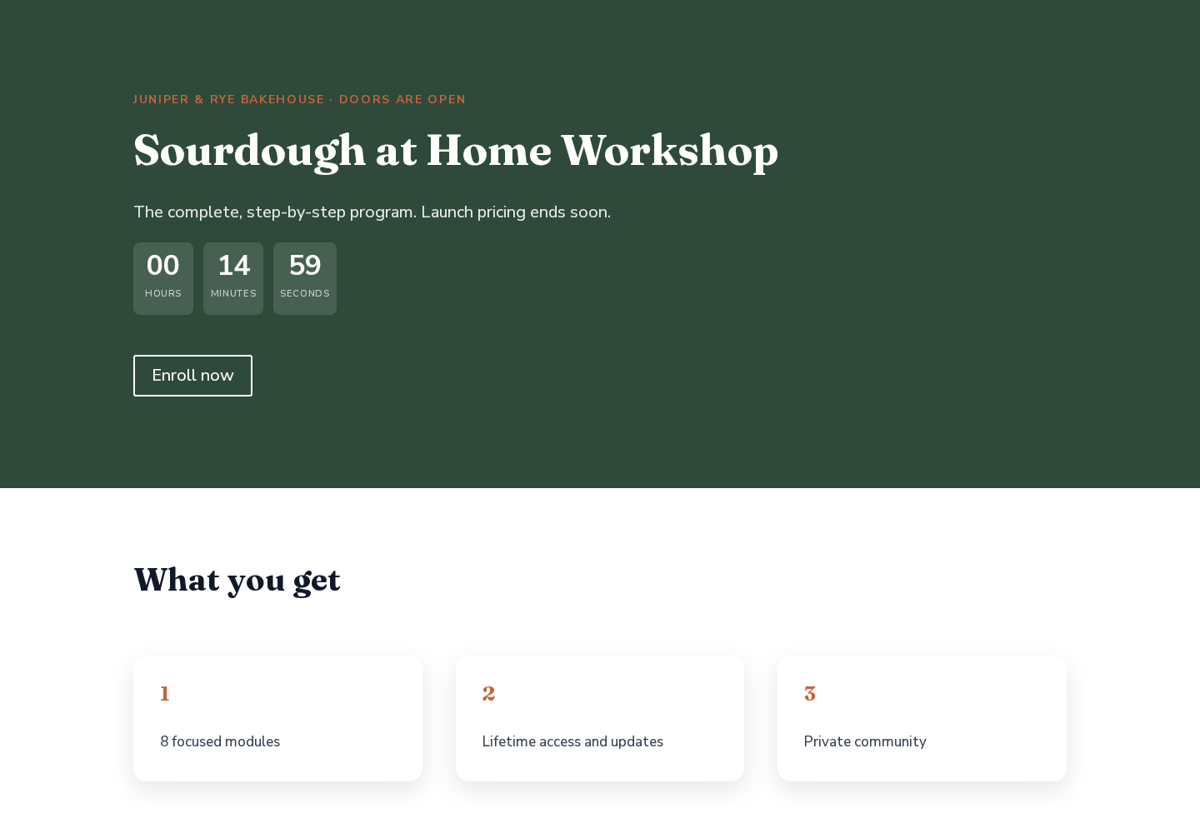
- Product Launch: sales page with countdown, checkout with an order bump, one upsell and a thank-you page.
- Tripwire: low-price front offer, order bump, a core-offer upsell, a downsell if they say no, and thank-you.
- Webinar Registration: registration page with a countdown to the live date, then a confirmation page.
- Service Booking: service landing page, a request form that captures the lead, and a "what happens next" page.
- Ecommerce: Bump + Upsell: product landing page, checkout with an order bump, one-click upsell and an order-details thank-you page. - Optional: change the funnel name, and fill in Your brand (your business name) and What you offer. The template puts these on its pages.
- Click Import. Every step is built as a Divi layout you can edit, and the funnel starts as a Draft. Store templates need WooCommerce.
Store templates add hidden sample products so the funnel works right away. Replace them with your own products on each step (see below). When you're done, click Delete unused sample products on the Templates tab.
Start blank
On the Funnels tab, type a New funnel name and click Create blank funnel. Then add steps with Add step.
Clone
Click Clone next to a funnel (or a single step) to copy it, for example to try a new offer.
Steps
Each step has a Step type:
- Landing page and Sales page: pages that lead to the next step.
- Opt-in: collects a name, email and/or phone.
- Checkout: the WooCommerce checkout for this funnel, with an optional order bump.
- Upsell and Downsell: one-click offers shown after payment.
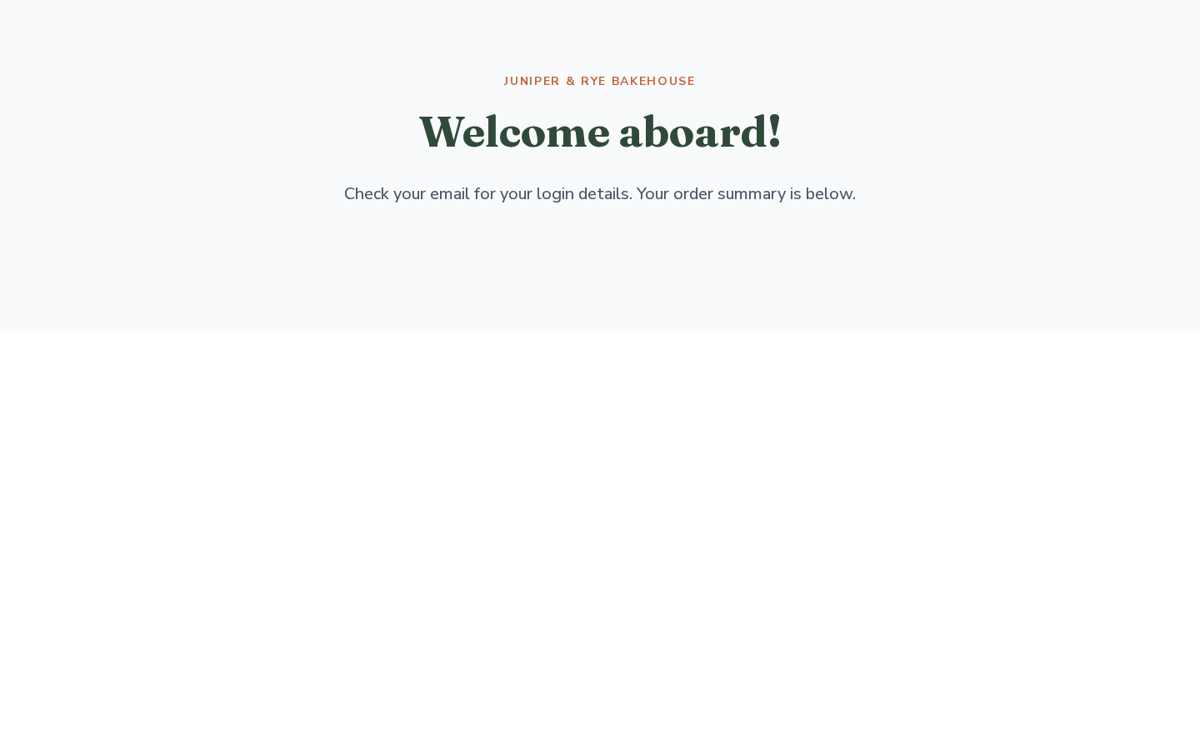
- Thank you: the order confirmation.
Reorder steps by dragging them on the funnel (or focus a step and press Alt + arrow keys), then click Save funnel. Visitors move top to bottom unless a step sends them somewhere else.
Open a step to set its Title, URL slug, Page layout and products. Steps live at an address like yoursite.com/go/step-name/ (change the go part under Settings > Step URL base).
Page layout: Blank (no header or footer) gives a distraction-free page; Theme header and footer keeps your site's header and footer.
Status: a funnel can be Draft or Live. Use View funnel to open the first step.
Products, order bumps and offers
Checkout products
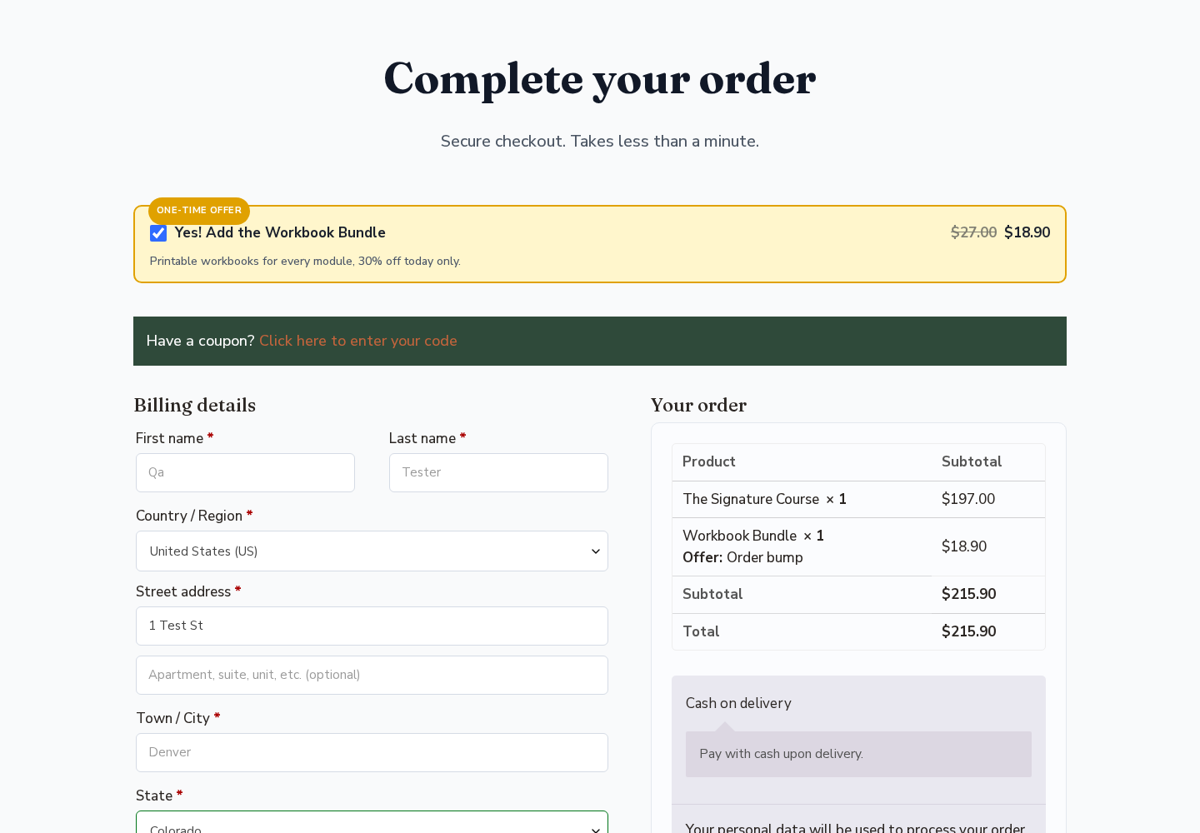
On a checkout step, click Add product and search for your WooCommerce products. Set the Quantity and an optional Discount (% off, Amount off or Set price). Use a simple product or a specific variation, not a variable parent product.
Checkout options:
- Empty the cart first (sell only these products)
- Coupon applied at checkout: a WooCommerce coupon code (separate several with commas)
- Free shipping on funnel orders, optionally Only when the subtotal is at least an amount
Order bump
Tick Offer an order bump on the checkout step and choose the product, headline, description and discount. The bump is a checkbox inside the checkout, not a separate page.
Upsells and downsells (one-click offers)
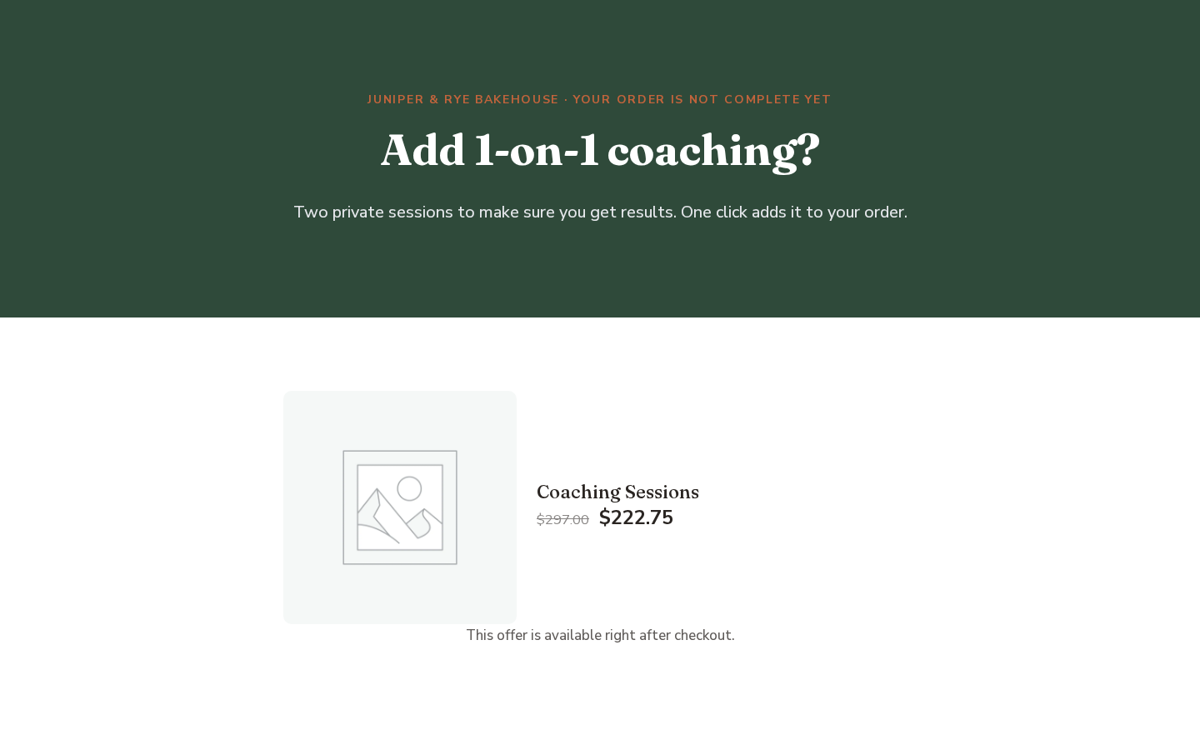
On an upsell or downsell step, set the One-click offer product and discount. Under Routing, choose where After accept and After decline go. Empty goes to the next step. A typical store funnel is: sales page, checkout (+ bump), upsell, downsell (shown if the upsell is declined), thank-you.
Replace the store checkout
In a funnel's Funnel settings, Replace the store checkout with this funnel sends shoppers who go to the normal WooCommerce checkout to this funnel's checkout instead. Choose Off (normal WooCommerce checkout) to turn it off.
Design in Divi
Click Design in Divi on a step to open it in the Divi Visual Builder. Divi Funnels adds eight modules (Divi 5 and Divi 4):
- Funnel Checkout: the checkout form for this step's products.
- Order Bump: the bump checkbox and offer.
- Upsell Offer: the offer with Accept and Decline buttons.
- Opt-in Form: the lead form.
- Countdown: a timer for deadlines.
- Funnel Product: shows a product's image, name and price.
- Next Step Button: a button that goes to the next step.
- Order Details: the order summary on the thank-you page.
Style them with Divi's own spacing, colors and fonts. Funnel CSS and JavaScript only load on funnel steps, so the rest of your site isn't slowed down.
Payments and one-click upsells
How an accepted upsell is paid depends on the payment method the buyer used at checkout:
- Cash on delivery, bank transfer and check: the upsell is added to the same order. Truly one click.
- Stripe (WooCommerce Stripe Gateway): the saved card is charged in one click, as a linked order. Keep Save the card for one-click upsells (Stripe) on in Settings.
- Other gateways (WooPayments, PayPal and more): the buyer confirms the upsell on a short payment page. Not one click.
- WooCommerce Subscriptions products work at checkout; subscription upsells always use the payment page.
In Settings > Upsells and orders, When a gateway cannot charge in one click lets you choose Show a short payment page or Skip upsells. You can also choose to Add to the original order when possible or keep upsells as Always a separate order, and Tag orders with the funnel and step.
A/B split tests
- Open a step and click Add variant (copy of this step). Edit the variant with Edit variant.
- Set each variant's Weight % and click Run the test, then Save split.
- Visitors are split by weight and always see the same variant.
- Each variant shows its Conversion, Lift and Confidence against the control. Wait for 95% confidence or more, then click Declare winner. All visitors then see the winner.
Analytics
The Analytics tab shows, for each funnel and date range: visitors, conversions, revenue, average order value (AOV), bump rate, upsell take rates and drop-off for every step, plus Traffic sources (UTM).
Privacy:
- First-party: the data stays in your own database. No third-party trackers.
- No tracking cookies and no IP addresses stored. Visitors are counted with a salted hash that changes every day.
- Visitors who send Do Not Track or Global Privacy Control are skipped (switch under Settings > Privacy and analytics).
- Keep analytics for (days) deletes old data automatically (default 365). Delete all analytics for this funnel? clears one funnel.
Leads
Opt-in forms save leads on your site under the Leads tab. Search by email or name, delete a lead, or Export CSV.
On an opt-in step you choose the Fields (any of name, email, phone), an optional Consent checkbox text, Tags, and an optional Send to URL after opt-in.
To send leads elsewhere:
- Email me new leads (empty uses the site admin email)
- Webhook URL: leads and orders are POSTed as JSON. Add a Webhook secret to sign each webhook (
X-DFN-Signature, HMAC-SHA256). - Developers: the
dfn_lead_capturedaction.
Keep leads for (days): 0 keeps everything.
Divi Kickstart integration
When Divi Funnels is active, Divi Kickstart's brief shows an optional Sales funnel question: No funnel, Just a sales funnel or A full site with a sales funnel, plus the Funnel type, What the funnel sells or gives away and Price (optional).
Your Grok Bot then builds the funnel from the matching template and brands it from your brief: business name, offer, price, colors and fonts. It creates the WooCommerce products from your offer and price. The funnel is created as a draft so you can check it before going live. If Divi Funnels isn't active, Kickstart works exactly as before.
Divi Bot Bridge integration
With Divi Bot Bridge connected, your Grok Bot can create, edit and check funnels for you through the plugin's REST API (divi-funnels/v1, admins only). Just ask, for example:
- "Build a product launch funnel for my sourdough starter kit at $29."
- "Add a downsell after the upsell in my Spring Launch funnel."
- "Start an A/B test on the sales page headline."
- "How is my Spring Launch funnel converting this month?"
Your bot sees leads as personal data and summarizes them rather than pasting lists.
Settings
SUWEB > Divi Funnels > Settings:
- General: Step URL base; New steps hide the theme header and footer.
- Upsells and orders: payment fallback, one-click mode, Stripe card saving, order tagging.
- Privacy and analytics: First-party analytics on/off, Do Not Track / Global Privacy Control, retention.
- Leads: email notices, webhook URL and secret, retention.
- Uninstall: Delete all funnels, steps, leads, analytics and settings when the plugin is deleted (off by default).
Hosting firewall (WAF) and caching
The Divi Funnels screen and your Grok Bot use the WordPress REST API under /wp-json/. If an action fails with a 403 or Forbidden Access page, add a firewall exception for /wp-json/ (see suweb.ai/docs/hosting-and-firewall).
Funnel step links carry a short ?dfn_s= code and send no-cache headers so host page caches don't mix up shoppers' carts. Leave it in place, and don't share links that contain it; share the step address without it.
Troubleshooting
- "WooCommerce is not active.": install and activate WooCommerce.
- "Divi was not found.": activate the Divi theme or Divi Builder to use the modules.
- The modules don't show in the Visual Builder: make sure you're editing a funnel step (open it with Design in Divi) and clear Divi's cache.
- A step shows an empty cart: clear your host/site cache and open the funnel from View funnel, not a saved link.
- Upsell asks for payment instead of one click: expected for gateways other than Stripe and offline payments (see Payments).
- Upsell doesn't add a variable product: choose a specific variation.
- Sample products still in the store: they're hidden; remove them with Delete unused sample products on the Templates tab.
- A step address goes to the wrong page: step slugs are unique across funnels; rename the step's URL slug and save.
FAQ
Is the order bump its own page? No. It's a checkbox inside the checkout step. Upsells and downsells are separate steps after payment.
Does it set cookies for analytics? No. WooCommerce still uses its own cart cookies for checkout.
Can I use my normal checkout too? Yes. Only funnels set to replace the store checkout change it.
Where is my data? Funnels, leads and analytics are stored in your WordPress database. Nothing is sent to suweb.ai except license checks (key, site address, plugin version).
Need help?
Visit suweb.ai/support and suweb.ai/docs.
Version history and requirements: requirements & changelog.