
Docs / User guide
Divi Bot Bridge user guide
Connect your Divi site to your own Grok Bot, safely. Install, connect, undo changes and fix firewall blocks.

What support covers. SU support helps with problems in SU plugins only. For Divi itself (the theme, the builder, Divi updates) or for design help, please contact Elegant Themes support.
What it does and who it's for
Divi Bot Bridge connects your Divi site to your own Grok Bot so it can do real Divi work for you: global colors and fonts, presets, Theme Builder headers and footers, Divi Library items, theme options, custom CSS and page content. It saves a backup before it changes or removes anything, keeps a change log with a Restore button, and has an on/off switch you control.
Bridge is included with any active SU license.
It's for small business owners who'd rather ask than click, and for freelancers and agencies who manage Divi sites with a Grok Bot.
Requirements
- WordPress 6.4 or newer, PHP 7.4 or newer
- Divi 4 (4.27 or newer) or Divi 5, as the Divi theme or the Divi Builder plugin
- An administrator account on the site
- Application passwords turned on in WordPress (they need your site to be on HTTPS)
- A Grok Bot to connect
Install the plugin
- Download the plugin zip from your account at suweb.ai > My account > Downloads. Keep it zipped.
- In WordPress, go to Plugins > Add New and click Upload Plugin at the top.
- Click Choose File, pick the zip, then click Install Now.
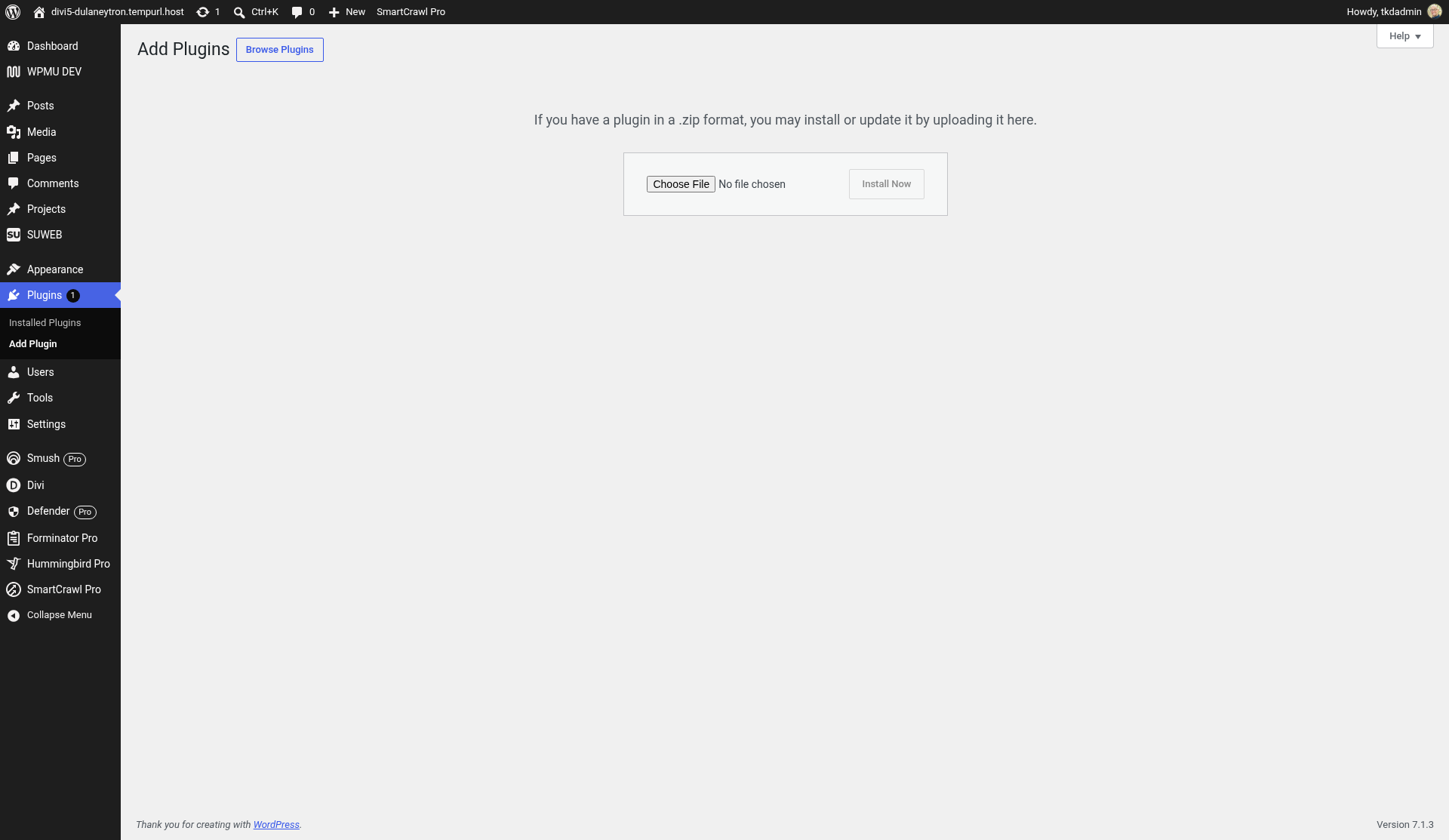
- Already have an older version installed? WordPress shows a comparison. Click Replace current with uploaded.
- Click Activate Plugin. A SUWEB menu appears in the left sidebar (all SU Web plugins share it).
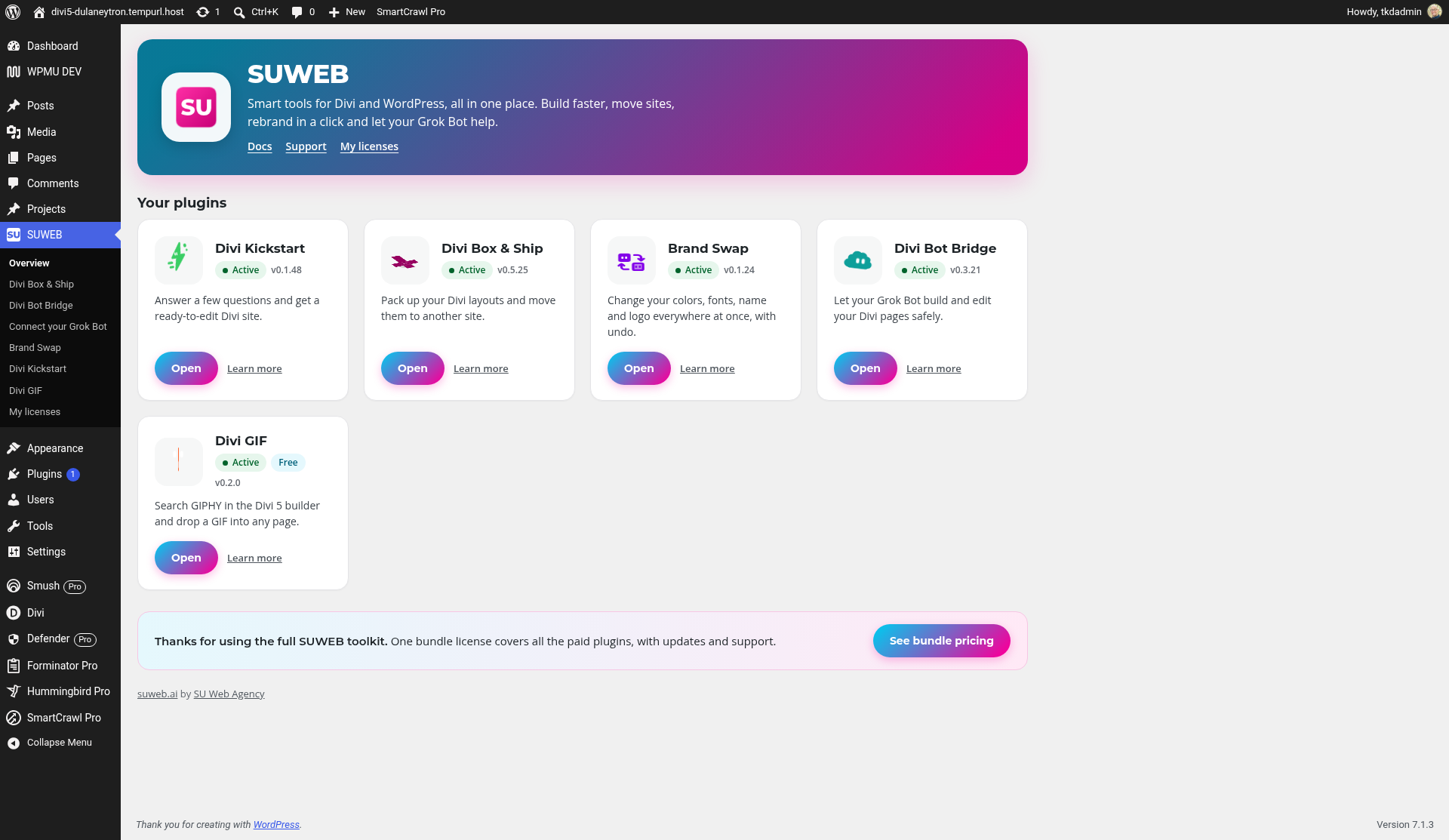
Add your license key
Divi Bot Bridge is included with any active SU license, so you don't need a separate key for it. A license gives you updates and support. The plugin keeps working with or without one.
- Find your key in your order email or at suweb.ai > My account > My licenses.
- In WordPress, go to SUWEB > My licenses.
- Under Add a license key, paste your key and click Activate. One key fills in for every installed SU Web plugin it covers.
- You'll see License activated. Each plugin row shows its version, a status pill, and your key masked (only the last four characters show).
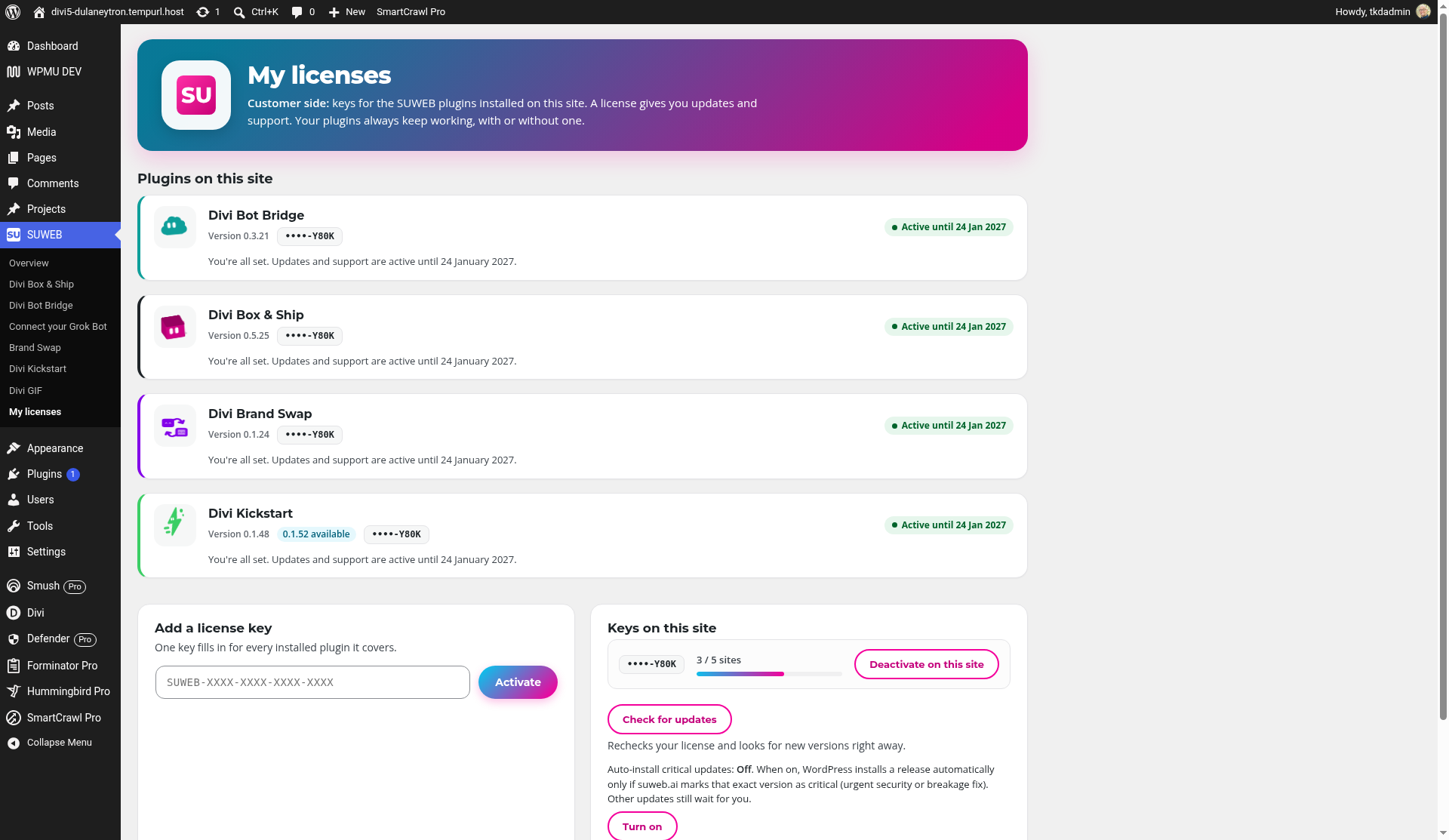
- Moving the plugin to a different site? Click Deactivate on this site first so the site seat is freed up.
Getting updates
- Updates arrive the normal WordPress way: Dashboard > Updates (and the Plugins page) when a new version is ready.
- Want to check right now? Click Check for updates on SUWEB > My licenses. It rechecks your license and looks for new versions straight away.
- Optional: Auto-install critical updates installs a release automatically only when suweb.ai marks it as an urgent security or breakage fix. Other updates still wait for you.
Status messages you may see
- No license. Add a key below to get updates. No key entered yet.
- This license is no longer active. Everything keeps working as before; updates and support are paused. Renew at suweb.ai.
- Update available, renew to download. A new version exists; renew to get it.
- Activation failed. Check the key for typos and that you have a free site seat, then try again.
Privacy
Licensing only sends your license key, your site's address and the plugin version to suweb.ai. Nothing else, and none of your content.
The Divi Bot Bridge screen
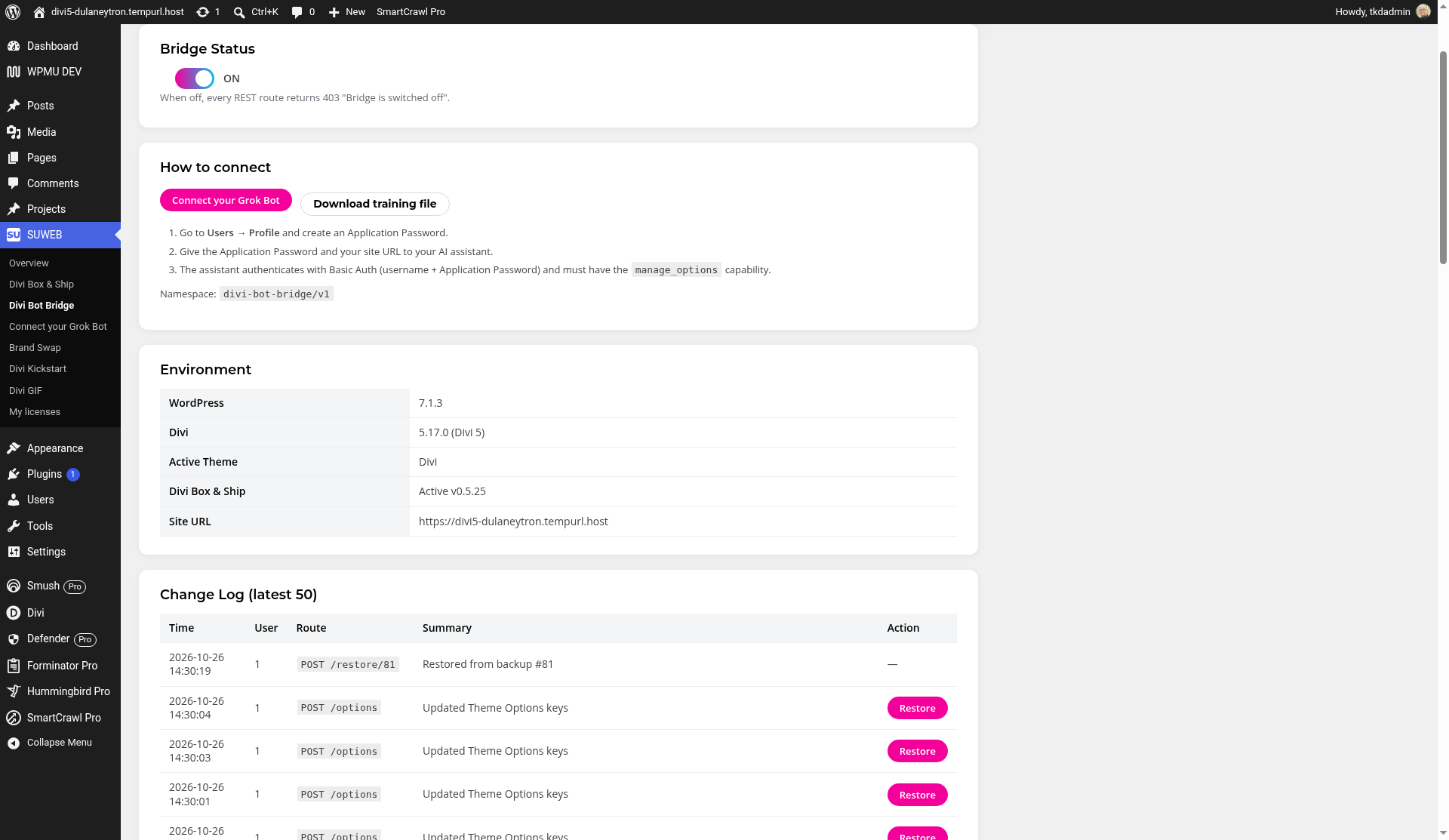
Go to SUWEB > Divi Bot Bridge.
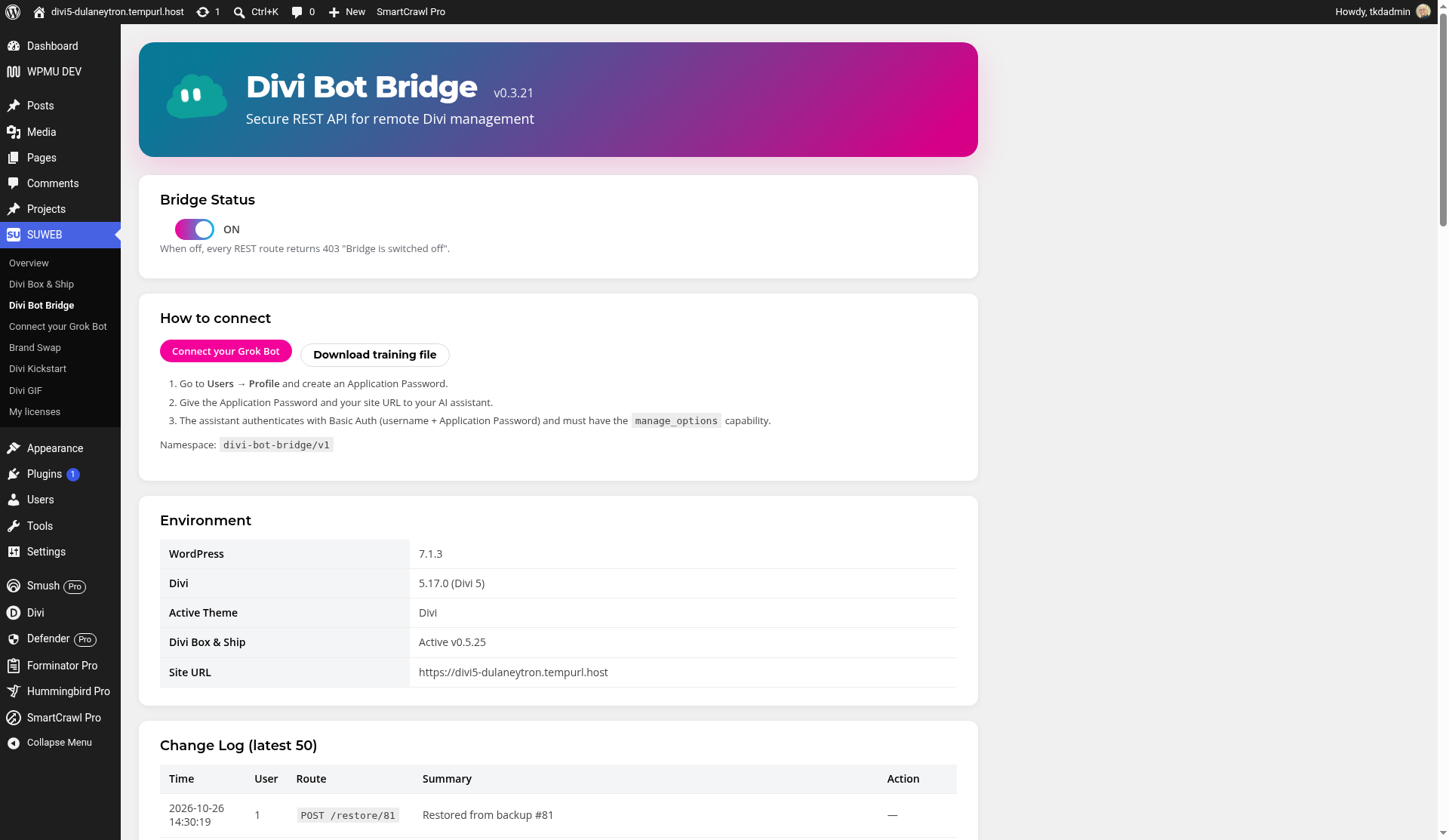
- Bridge Status: the on/off switch. When it's off, your Grok Bot can't read or change anything through Bridge (it gets a "Bridge is switched off" message). Turn it back on whenever you like.

- How to connect: a shortcut to Connect your Grok Bot and a Download training file link.
- Environment: your WordPress, Divi and active theme versions, whether Divi Box & Ship is installed, and your site address. Handy to send to support.
- Change Log (latest 50): every change your Grok Bot has made (time, user, what was changed, a short summary). See "Undo a change" below.
Connect your Grok Bot (four quick steps)
Go to SUWEB > Connect your Grok Bot.
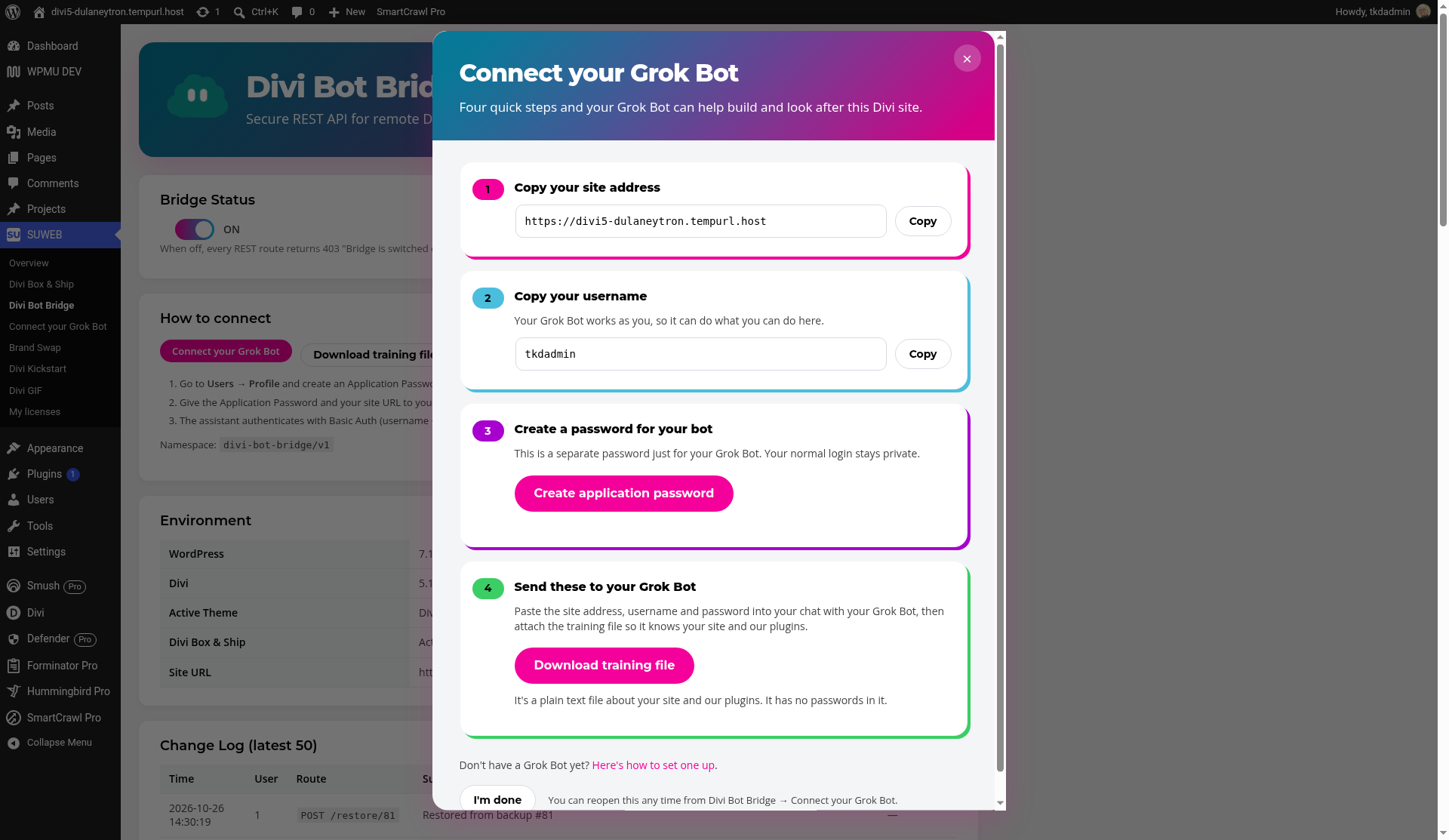
- Copy your site address. Click Copy.
- Copy your username. Your Grok Bot works as you, so it can do what you can do here.
- Create a password for your bot. Click Create application password, then Copy. This is a separate password just for your Grok Bot; your normal login stays private. Copy it now: WordPress shows it only once.
- Send these to your Grok Bot. Paste the site address, username and password into your chat with your Grok Bot, then attach the training file (Download training file). The file is plain text about your site and our plugins and contains no passwords.
- Click I'm done. You can reopen this any time from Divi Bot Bridge > Connect your Grok Bot.
No Grok Bot yet? Follow the Here's how to set one up link in the same window.
To disconnect your Grok Bot, revoke its application password under Users > Profile, or simply switch Bridge Status off.
Everyday use
Just ask your Grok Bot in plain words, for example "change the accent color to navy", "set the body font to Lato", or "add a footer with our phone number". Bridge saves a backup before anything is changed or removed, and Divi's cache is cleared after changes.
Undo a change
- Go to SUWEB > Divi Bot Bridge and scroll to Change Log (latest 50).
- Find the change and click Restore to put the earlier version back. (If nothing has happened yet, you'll see No changes yet.)
Hosting firewall (WAF) and security plugins
Your Grok Bot talks to Bridge through WordPress's standard web address for apps (the REST API, under /wp-json/). Some hosts' firewalls block these requests even though they're properly logged in.
Signs of a block: an action spins and then fails, or you (or your Grok Bot) see a plain page saying 403 or Forbidden Access instead of a normal WordPress message. This page comes from your host's firewall, not from the plugin.
Step 1: Add a firewall exception for /wp-json/. In your hosting control panel, open the firewall / WAF settings (or ask your host's support) and add an exception for the path /wp-json/. Just the path is enough; you don't need the full web address. This is the fix that worked on suweb.ai itself. It doesn't open your site up: every request still has to log in properly.
Step 2 (alternative): an IP allow rule. If your host can't do path exceptions, ask them to allow the IP address the requests come from. Note that some IP addresses change over time, so the path exception is the better long-term fix.
Step 3: Delete requests. Some hosts block "delete" type requests altogether. You don't need to change any settings for this: WordPress accepts a delete sent as a normal request marked ?_method=DELETE, and the training file you give your Grok Bot already tells it to work this way. If your Grok Bot still can't remove or replace things, mention to your host that DELETE requests are being blocked.
Step 4: Check your security plugins. Security plugins can block the same requests. For example, in CleanTalk look at the anti-crawler, anti-flood and firewall options: leave them off, or add your own site / the request to their allowlist. Do the same check in any other firewall or security plugin you use.
Step 5: Retest.
- Make sure Bridge Status is on.
- Ask your Grok Bot to check the connection, for example "read my site's Divi settings" or "show me my Environment info".
- If it answers normally, you're fixed. If it reports a 403 / Forbidden Access page again, the firewall is still in the way: recheck Steps 1 to 4.
If it still fails, clear any site or host cache, wait a few minutes for firewall changes to take effect, and try again. Still stuck? Contact suweb.ai/support and tell us what you saw and when. See also suweb.ai/docs/hosting-and-firewall.
Troubleshooting
- "Your site has application passwords turned off": usually the site isn't on HTTPS yet, or a security plugin has turned application passwords off. Ask your host to enable HTTPS, or check your security plugin.
- Your Grok Bot says "Bridge is switched off": turn Bridge Status back on.
- Your Grok Bot gets a "forbidden" or permission error that isn't the host's Forbidden Access page: the username it connects with must be an administrator.
- A Forbidden Access / 403 page: see the firewall section above.
- Something changed that you didn't want: use Restore in the change log.
- Divi 4 vs Divi 5: some Divi 5-only features (such as design variables) aren't available on Divi 4. Your Grok Bot will be told they're not supported.
Need help?
Visit suweb.ai/support and suweb.ai/docs.