Asking an AI assistant to change your Divi site sounds great until it asks for your WordPress username and password. You shouldn’t give it those, and you don’t have to. WordPress already has a safer way to let an app work on your site, and a few simple habits make it safe to let an assistant do real work. Here’s how to set it up properly.
Why you shouldn’t share your normal login
Your main login is the key to everything: your account, your email address, your other admin users, your plugins. If you paste it into a chat, a browser extension or any outside tool, you can’t take it back without changing it, and changing it logs you out everywhere.
There’s a practical problem too. An assistant that logs in with your password has to work the way you do, by opening wp-admin and clicking around the screen. That’s slow, and one moved button breaks it. It also gives you no record of what it changed.
Use a WordPress application password instead
WordPress has a built-in feature for exactly this: application passwords. An application password is a separate password for one app. It works for WordPress’s REST API (the standard web address apps use, under /wp-json/), but it can’t be used to log in to wp-admin on the normal login screen.
How to create one
- Make sure your site runs on HTTPS. WordPress only offers application passwords on secure sites.
- In WordPress, go to Users > Profile and scroll to Application Passwords.
- Give it a clear name, such as “Grok Bot”, and click Add New Application Password.
- Copy the password straight away. WordPress shows it only once.
Give the assistant your site address, your username and that application password. Your normal password never leaves your hands.
How to take access away
On the same profile screen, click Revoke next to the application password. Access stops right away, and nothing else about your account changes. That’s the big win over a shared login: you can switch one app off without touching anything else.
The catch: plain WordPress can’t reach most of Divi
An application password gets an assistant into the WordPress REST API. That API handles posts, pages and media well. But most of what makes a Divi site a Divi site sits out of its reach:
- Global colors and global fonts
- Presets, the module styles your pages share
- Theme Builder headers, footers and templates
- The Divi Library
- Theme options, the Customizer and custom CSS
So even with a proper password, an assistant either can’t do the job or falls back to logging in and clicking, which brings back all the problems above. Page content is also easy to break if it’s saved as raw text instead of proper Divi modules.
How Divi Bot Bridge closes the gap
We built Divi Bot Bridge for this. It connects your Divi site to your own Grok Bot (opens in a new tab) and gives it the Divi-specific tools to work properly: global colors and fonts, presets, the Theme Builder, the Divi Library, theme options, the Customizer, custom CSS, branding and page content saved as real Divi 4 or Divi 5 modules.
It still uses the same safe setup described above. Your Grok Bot connects with a WordPress application password, so your main login stays private and you can revoke access whenever you like.
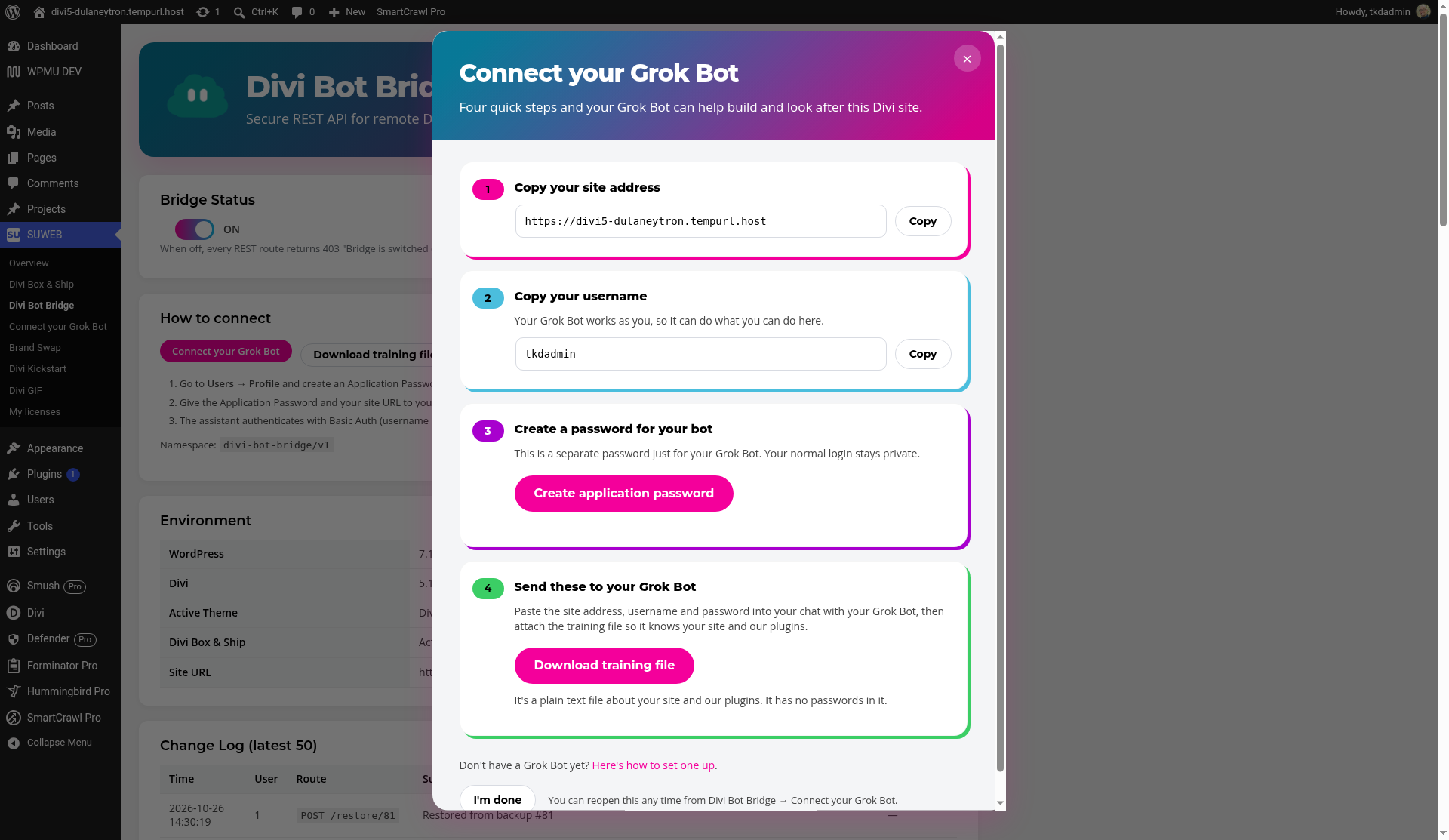
Connecting takes four steps
- Go to SUWEB > Connect your Grok Bot and copy your site address.
- Copy your WordPress username. Your Grok Bot works as you, so use an administrator account.
- Click Create application password and copy it.
- Paste all three into your chat with your Grok Bot and attach the training file. The training file contains no passwords.
The Divi Bot Bridge user guide covers each step, including how to save the training file as a skill so your Grok Bot remembers it.
Three safety nets you should insist on
Whatever tool you use to let an assistant work on your site, look for these. Bridge has all three.
1. An on/off switch
Bridge has a Bridge Status switch under SUWEB > Divi Bot Bridge. Turn it off and your Grok Bot can’t read or change anything through Bridge until you turn it back on. Handy when a client is reviewing the site or you just want a quiet week.
2. A backup before every change
Bridge saves a backup before it changes or removes anything. If you don’t like a change, open the Change Log and click Restore, or simply ask your Grok Bot to restore it.
3. A record of what happened
The Change Log lists every change your Grok Bot made, with the time, the user and a short summary. No guesswork about who changed the button color.
Where your data goes
This matters as much as the password. With Bridge, your pages, layouts, settings and backups stay in your own WordPress site. The application password lives in your site and your own Grok Bot. Bridge doesn’t send your site content, settings or passwords to suweb.ai or SU Web Agency. The only contact with us is a license check: your license key, site address and plugin version, for activation and updates.
Good first jobs to give your assistant
Start small so you can see how it works and check the results:
- “Change our phone number in the header and footer.” Your Grok Bot finds it in the Theme Builder, backs it up, updates it and clears the cache.
- “Darken the button color slightly.” Done through Divi’s own settings, not a pile of CSS.
- “Add a FAQ page that matches the services page.” Built with native modules and your existing presets, so you can edit it in the Divi Builder later.
- “Restore the backup from before that change.” So you know undo works before you need it.
If an action spins and fails with a plain “403” or “Forbidden” page, that’s usually your host’s firewall blocking /wp-json/. Our hosting and firewall guide shows the one exception that fixes it.
FAQ
Can an application password log in to wp-admin?
No. Application passwords work for the REST API, not for the normal WordPress login screen. That’s why they’re safer to hand to an app.
What happens if I revoke the password?
The assistant loses access straight away. Nothing on your site changes, and your own login keeps working.
Does my assistant need an administrator account?
For Divi settings, yes. Your Grok Bot works as the user whose application password it has, so it can only do what that user can do. If you don’t want it to do something, switch Bridge off or revoke the password.
Does Bridge work with Divi 4 and Divi 5?
Yes. It needs Divi 4.27 or newer or Divi 5, WordPress 6.4 or newer and PHP 7.4 or newer. Content is saved in the native format of the Divi version you run.
Do I have to buy Bridge separately?
Bridge is $29 on its own, and it’s included with Divi Kickstart, Divi Box & Ship, Divi Brand Swap and the bundles. Your license includes a year of updates and support. If you cancel, the plugin keeps working; you just stop getting updates and support.
Give your Grok Bot a safe way in
Use an application password, keep an off switch, and make sure every change is backed up. Divi Bot Bridge gives you all three and teaches your Grok Bot how Divi works.
Disclosure: suweb.ai is made by SU Web Agency, and we make the plugin mentioned here. Application passwords are a standard WordPress feature and work without it.